
In this article
Google reviews help people choose the right business. But a name next to a review can say more than the writer intended.
Why people hold back
If you see a therapist, a counsellor, a solicitor or a private clinic, a public review can reveal more than you want it to. Your name beside five stars can show that you use a service you would rather keep private.
Many people quietly skip leaving a review for this reason. The business then loses feedback that would help the next client decide. Google offers a way round this, and it takes about two minutes to set up.
What Google lets you change
You choose a display name and a picture. A picture is required, so pick one of the illustrations or upload your own. These replace your real name and photo on your public contributions.
- The name and picture appear on reviews, photos, videos and Questions and Answers on Google Maps and Google Search.
- It applies to every review you have written and every review you write in future. You cannot choose it for one review only.
- Your Gmail, Google Drive and other Google services keep your real name.
- Google still links each review to your account. This hides your name from the public, not from Google.
On a computer
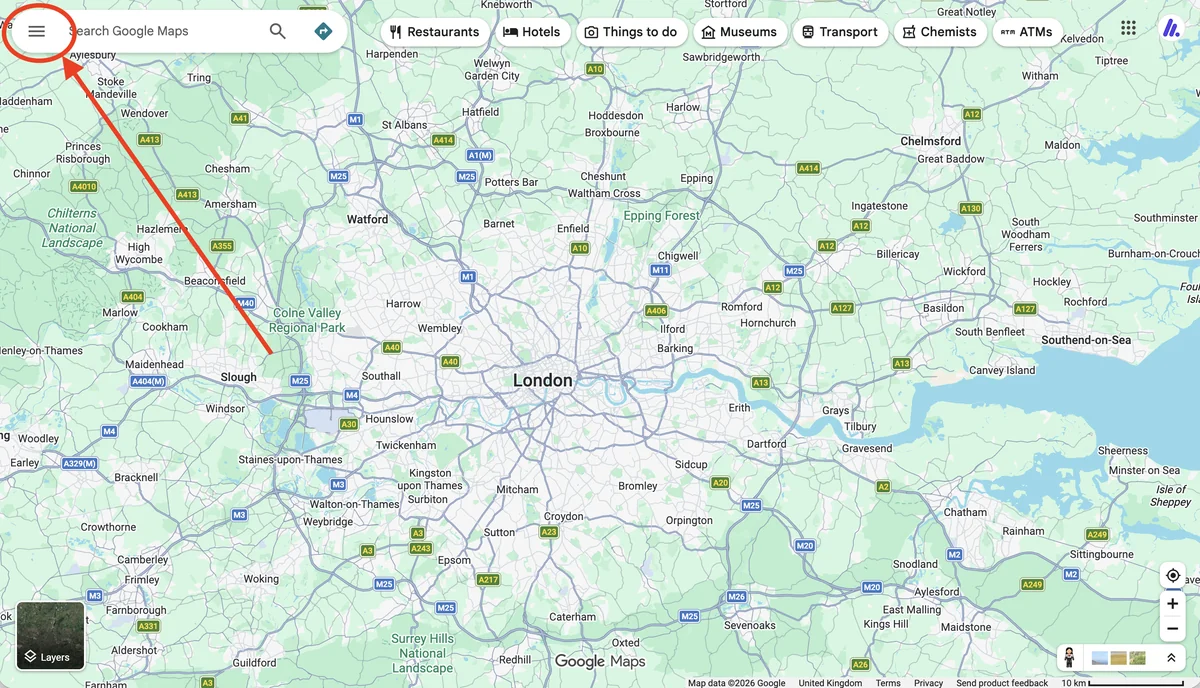
Open Google Maps and sign in. Click the menu icon in the top left corner, the three horizontal lines.
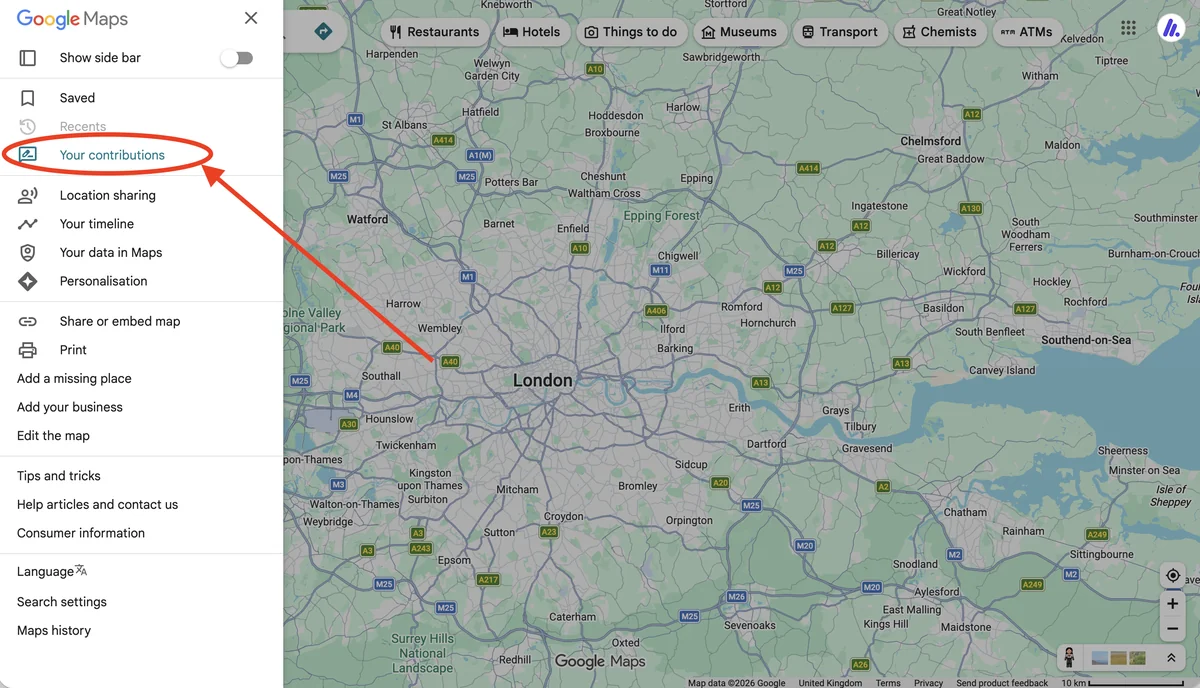
Click Your contributions in the menu.
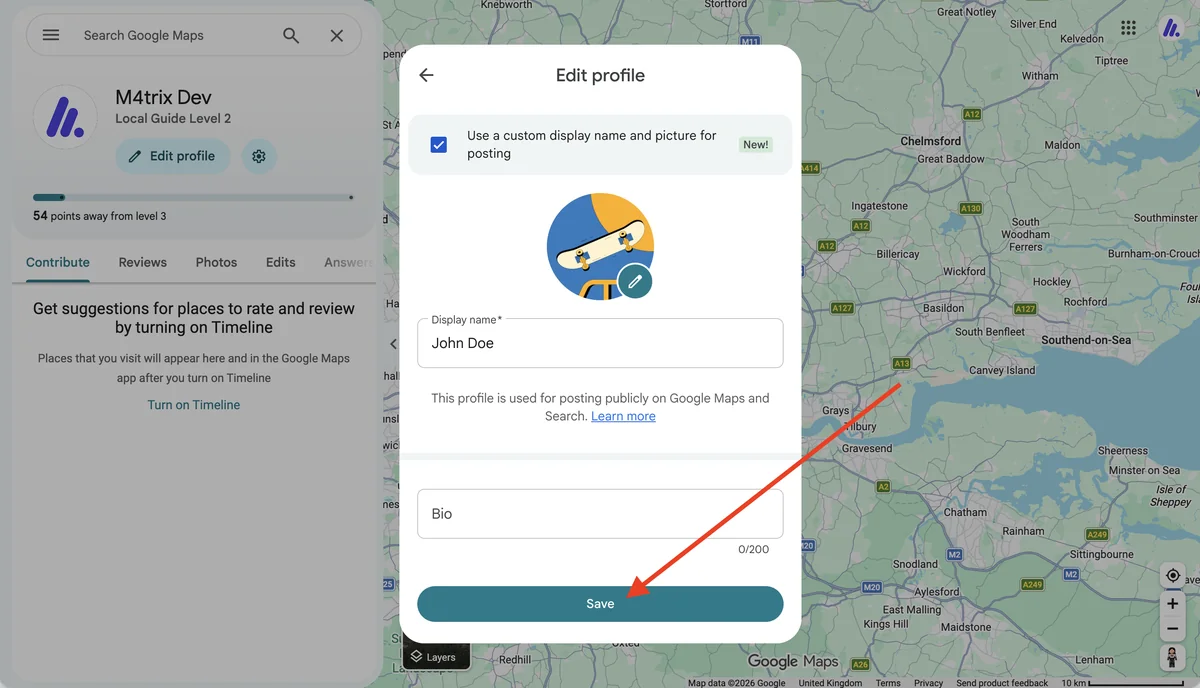
Select Edit profile, then tick the box next to "Use a custom display name and picture for posting".
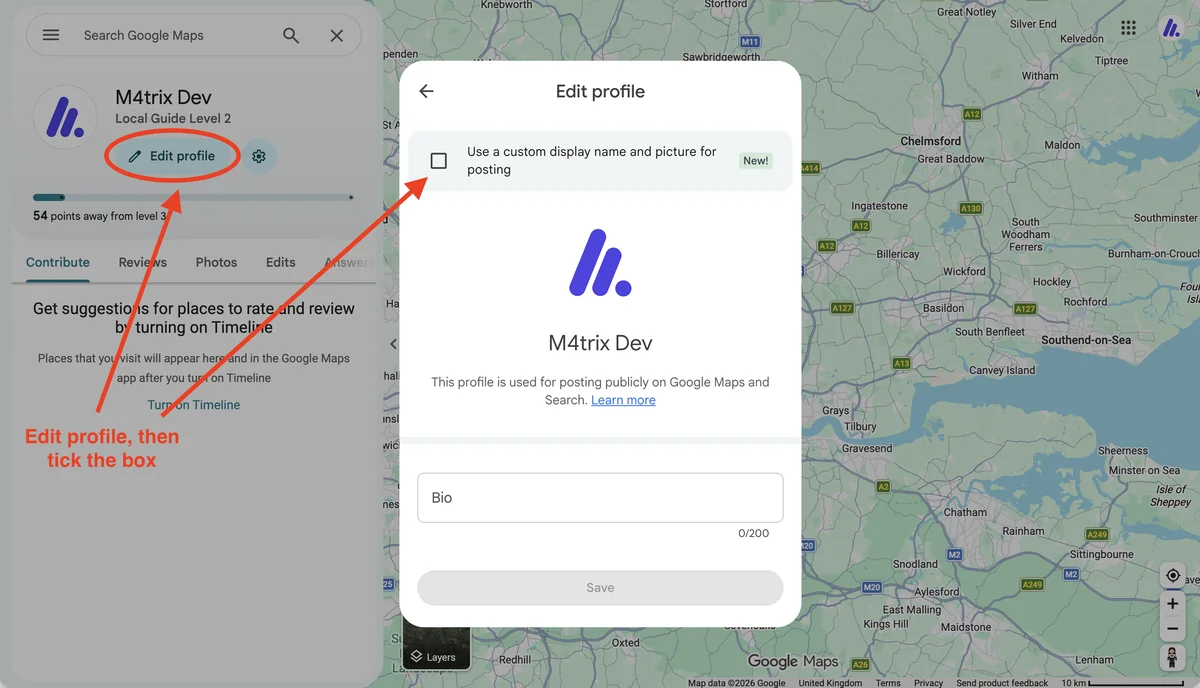
Type your chosen name in the Display name field and choose a picture. Then click Save.
On your phone
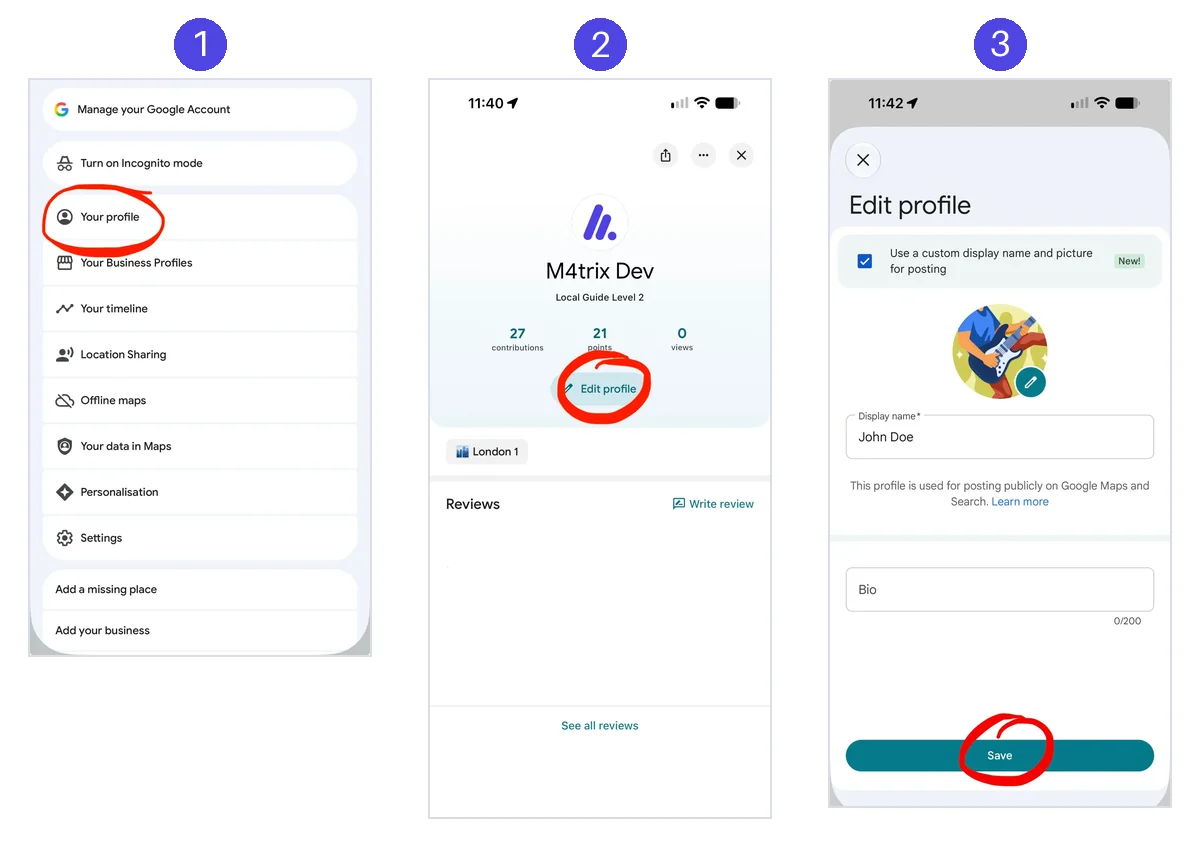
The three steps are shown in the strip at the top of this page, numbered to match the list.
- Open the Google Maps app, sign in and open your profile from the menu by choosing Your profile.
- Tap Edit profile.
- Tick the box, type your display name, choose a picture and tap Save.
Leave your review
Search for the business on Google Maps and open its listing. Tap or click Reviews, then Write a review. Add your star rating and your words. The review will appear under your chosen name and picture.
Five things to know
- Check the right box. If you click "Edit Google Account info" by mistake, you change the name on your main Google account, which shows across Gmail and your other Google services. Use the option inside your Google Maps profile.
- Past reviews change too. Ticking this box changes the name and picture on all your existing reviews. Unticking it brings your real name back on all of them.
- Pick a name that does not identify you. A made up name, a first name with an initial, or a nickname all work well.
- Keep personal details out of the review text. A pseudonym hides your name, but a review can still contain clues, such as your job, your street or a detail only you would know.
- You can change your mind. Edit the display name and picture, or untick the box, at any time from the same screen.
A note for businesses
If a client asks about this, you can tell them it is fine. Google allows people to use a display name and picture for their public contributions, and a review written under a pseudonym is still a genuine review.
You can ask your customers to leave a review, but you cannot choose how their name appears. Google does not allow paying or rewarding people for reviews, and it does not allow fake reviews. Keep your requests simple, and let each customer decide what to share.
Your Google profile
Want your reviews to work harder?
Clients who prefer privacy still count, and their words still help. We look after your Google profile and help it grow, from the review requests you send to the replies you write.
Happy with our work? Leave us a Google review.
Written by

Matteo Beroldo
Founder of M4TRIX DEV. Over 20 years at GSK and Nestlé, now helping small businesses get found online and win more clients. About us