

In short
- Apply for Business Hub as soon as you can. You will either be registered or placed on a waitlist, and ChatGPT decides which.
- Claim your listing by verifying your website domain with a DNS TXT record, then verify your identity.
- Make your business facts identical everywhere they appear online.
- Get the basics of technical SEO and AI readable files in place on your website.
- Be listed on 50 main directories with the same details. The first 10 are below.
ChatGPT now has a place where businesses can claim their listing. It is called Business Hub, and it is still in beta. Some businesses can register straight away. Others are asked to join a waitlist. Either way, the work you do before access opens will decide how useful your listing becomes.
What Business Hub does
Business Hub lets eligible businesses claim their profile, keep their details current and see how people engage with them in ChatGPT. It went live on 10 November 2026 as a beta. The insights show aggregate activity over the past 28 days, including mentions and website clicks.
Business Agents are limited to eligible eCommerce and online service businesses in the United States for now. The hub itself is rolling out wherever ChatGPT is available. OpenAI does not list a fee for claiming or using the hub.
How the application works
- Open Business Hub and choose the option to claim or register your business.
- Search for your business and follow the prompts to check availability.
- ChatGPT decides. You will either be told you are registered, or you will be placed on the waitlist.
- If you are placed on the waitlist, submit the details requested. Joining only records your interest. It does not verify, claim or list your business.
- Watch your inbox for messages from OpenAI about access.
Eligibility rules are not fully published, and OpenAI may change them as the service develops. Apply early, even if you expect to be waitlisted. The steps below show what the sign up looks like once access opens for your business.
Part 1: Sign up step by step
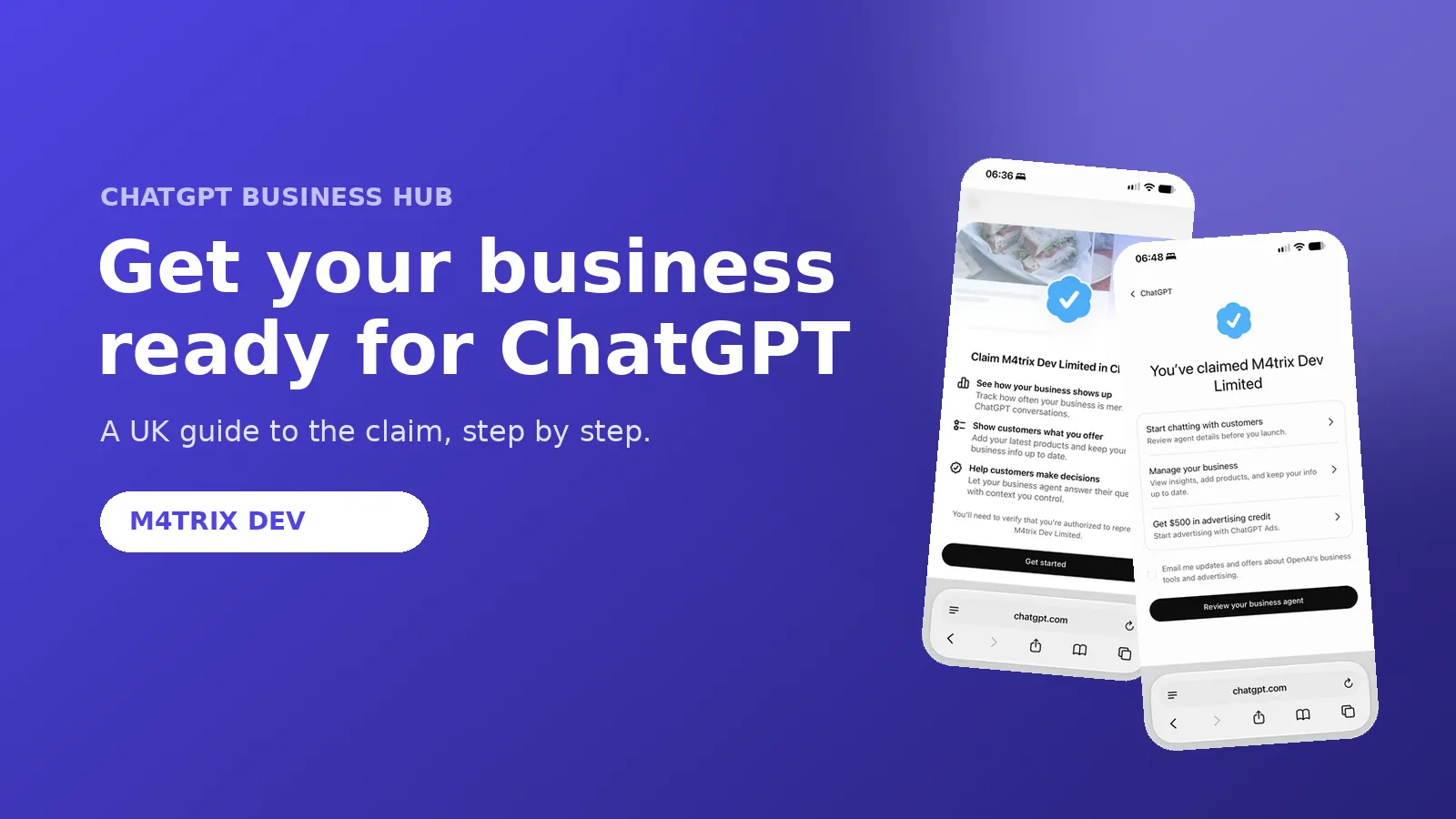
These screens come from a real claim for an M4TRIX DEV profile. Your screens may differ slightly, and OpenAI may change them over time. Sensitive details have been covered.
Tap any screen to enlarge it.
Find and select your listing
Add the TXT record to your DNS
Your claim is approved
Step 1: Find your business
Open Business Hub and search for your business name. Check that the address in the results matches your trading address, then select your listing.
Step 2: Start your claim
Read the introduction and tap Get started. Then confirm the account that will manage the profile. Use a login the business controls.
Step 3: Choose how to verify
You will be offered two options. Choose the business phone if you can receive a code by text or call. Choose the website domain if you can edit the DNS settings for your domain. The website domain route is the one shown here, and it is the route the DNS preparation in Part 2 is for.
Step 4: Add the TXT record to your DNS
The screen gives you three values: the type (TXT), the name or host (openai-business-claim) and a value that is unique to your claim. Copy them into the DNS settings of your domain through your domain provider, then return to the screen and tap Verify domain. The record expires about 24 hours after it is issued, so add it on the same day you start.
Step 5: Wait for the decision
Once you have verified the domain, your claim moves through three stages: claim received, review in progress and decision reached. You can withdraw the claim at any time during the review.
Step 6: Review your business agent and listing
Tap Review your business agent to open the agent builder. At the time of writing, the agent builder was not yet available in every region, so you may see a message saying it will arrive soon. Your business then appears in the Business list with its address, which is why the trading address needs to be right before you start.
Step 7: Verify your identity
Open your business and tap Verify. OpenAI asks for a government-issued ID before you can edit business information or publish a business agent. Start the verification, then read the consent screen carefully. Persona handles the check on OpenAI's behalf.
Step 8: Complete your profile
Once verified, open Edit business details. Work through the five tabs in order, using the same facts from your Business Fact Card in Part 2.
- About. Choose your business category and write a short description of what you do and where you work.
- Contact. Add your phone number, business email and website. Leave a field blank rather than guess.
- Photos. Upload clear photos of your premises, team or work.
- Location. Set the address customers can see, following the two address rules in Part 2.
- Hours. Enter your opening hours for each day, matching your website and Google Business Profile.
Part 2: Get ready so it works for you
The sign up is the easy part. What matters is that every detail ChatGPT can find about your business is accurate, consistent and easy to read. Work through these before you start the claim.
Make your business facts identical everywhere
Design one Business Fact Card. It is a single branded page with your exact business name, trading address, registered office, phone number, opening hours, service areas and prices. Keep it as a PDF on your desktop and copy from it each time you fill in a listing. Update the card first whenever a detail changes, then update every listing the same day. Inconsistent details make it harder for people and AI tools to trust what they read.
Two addresses: use each one for its job
Many UK limited companies have a registered office that differs from where they work. That is normal, but each address needs its own job.
- Registered office. This is the legal address on the public register at Companies House. It must be an appropriate address, and it cannot be a PO Box. File any change within 14 days.
- Trading address. This is where you work and where customers can reach you. Use it on Google, directories, your contact page, your Business Hub listing and your schema.
Google only shows a public address where you serve customers during your listed hours. A virtual or serviced office is not eligible unless someone is there during opening hours. If your registered office is a virtual address, keep it for Companies House and hide your address on Google instead.
Show the trading address on your contact page and in your schema. Show the registered office and company number in the footer, clearly labelled. If you move the registered office, file the change, then update your website, invoices and email footers.
Get the technical SEO basics in place
- Title tags. Give every page a unique title under about 60 characters. Include the service and the location, for example Web Design in Twickenham.
- Meta descriptions. Write a summary of about 150 to 160 characters for each page, written for a customer deciding whether to click.
- One H1 per page. The H1 should state what the page is about. Use H2 and H3 headings for the sections beneath it.
- Schema markup. Add structured data to the home page using Organization or LocalBusiness, with name, address, phone, opening hours, logo and sameAs links to your social and directory profiles. Add Service markup to service pages, FAQPage markup to FAQ sections and BreadcrumbList markup to inner pages.
- XML sitemap. Generate a sitemap and submit it to Google Search Console and Bing Webmaster Tools.
- robots.txt. Check that search crawlers can reach your key pages. Confirm that OpenAI's search crawler is allowed. Check OpenAI's current crawler documentation before you change anything.
- Canonical tags, HTTPS and speed. Set one canonical URL per page, serve every page over HTTPS and check Core Web Vitals in Search Console.
- Real text, not images. Key facts about your services, location and prices should be readable HTML text, not text inside images or content that only loads with JavaScript.
Add files that AI tools can read
- llms.txt. Place a plain Markdown file at the root of your domain. Give a short summary of the business, then list the key pages with one line each describing them. This costs little to create. No official source I reviewed confirms that ChatGPT reads llms.txt, so treat it as a useful summary rather than a guaranteed ranking factor.
- A single facts page. Publish an About or Business Facts page that holds your name, address, contact details, hours, service areas and credentials in one place. Link to it from the footer.
- FAQ content. Turn the real questions customers ask into FAQ entries. Each answer should be short, specific and easy to quote.
Be listed on 50 main directories
Aim for 50 listings with the same master details. The directories below are chosen for their fit with UK local businesses. These are the first 10.
- Apple Business Connect
- Google Business Profile
- TripAdvisor
- Evening Standard
- Bing Maps
- Yell
- Bark
Some of these suit certain sectors more than others. Pick the directories that match your business first. Check that each directory is still active before you submit. If you would like the full list of 50, get in touch and ask for it.
Keep a spreadsheet of each listing, the login, the date you submitted it and the last time you checked it.
Before you start the claim
- Confirm you have access to your DNS. Find out who manages your domain and get the login. Lowering the TTL on the TXT record as far as possible is also recommended.
- Keep a phone that can receive a code. Phone verification is the fallback if you are unsure about editing DNS.
- Use a business email the business controls, not a personal account or an agency login. Do not give ownership of your claim to an SEO agency or consultant.
- Plan for identity checks. OpenAI requires identity verification through Persona before you can publish changes, view insights or create an eligible business agent. Decide how you feel about a biometric check before you start.
- If you run a Shopify store, connect it. Eligible Shopify products are already part of ChatGPT through Shopify Catalog.
Track your baseline and results
- Record your current position for key questions in ChatGPT, Claude and other assistants, with the date.
- Set up Google Search Console and Bing Webmaster Tools, and track branded and service searches monthly.
- Track clicks from your listings to your site with UTM tags on each link.
- When Business Hub insights appear, log mentions and website clicks each month.
Set realistic expectations
Claiming your profile does not guarantee that you appear in ChatGPT answers, rank higher or win more customers. ChatGPT can also use other sources when it answers questions about your business, so your website and other profiles still matter.
Need help with Get Found?
If the Get Found side of your business is holding you back, including your SEO and your wider organic strategy, feel free to get in touch. I am happy to talk it through.
Get in touch